Thursday, October 26, 2017

Turn on and off Honda Service Reminder with HDS HIM

Here’s the detail definition of service reminder system and how to turn on/off with Honda diagnostic System HDS HIM.

Service Reminder System
The Service Reminder System is an important feature of the multi-information display. Based on engine operating conditions, the NSX’s onboard computer (PCM)calculates the remaining engine oil life. The system also shows the Service Reminder Information Display along with the code(s) for other scheduled maintenance items needing service.
NOTE: If the vehicle was under some situations where the power was not supplied for a long period of time such as having a 12 volt battery run out, connect the HDS to the vehicle. If not, the Maintenance Schedule may not be displayed with.
Applicable Countries
The Service Reminder System will not be applied for all the EU countries. Confirm the countries where the system is applied. The system is not active in default setting. The system needs to be activated by HDS at Honda/Acura dealer. If the vehicle is taken to outside of the applicable countries, apply the maintenance schedule for non-applicable countries.
NOTE: If you turn the Service Reminder System OFF after the first activation, it cannot be reactivated. When one month or more passes after disconnecting 12 volt battery terminal, set the date on Service Reminder System with HDS.
How to turn ON/OFF Service Reminder System with HDS
1. Connect the Honda HDS HIM to the data link connector (DLC).
2. Turn the vehicle to the ON mode.
NOTE: Make sure the HDS communicates with the vehicle. If it does not communicate, go to the DLC circuit troubleshooting.
3. Select GAUGES from the BODY ELECTRICAL system select MENU with the HDS.
4. Select ADJUSTMENT, then select SERVICE REMINDER.
5. Select SETTING, then ON/OFF the Service Reminder System.
Service Reminder Information
1. The Service Reminder Information Display is shown on the multi-information display. When the vehicle is in ON mode, and the remaining days are more than 30 days, the display shows a warning symbol (A), the maintenance item(s) (B), and remaining days (C).
How to access to the Service Reminder Information Display
  • Turn the vehicle to the ON mode.
  • Roll the right multi-function steering wheel controller until the Service Reminder Information Display appears.
NOTE:
  • Required maintenance item code(s) are shown on Service Reminder Information Display. Complete list of maintenance item(s).
  • Depending on the client’s driving condition, the remaining distance may not be always in agreement with the mileage in the odometer.
2. When the vehicle is in ON mode, and the remaining days are within 29 to 10 days, the maintenance service message “Service Due Soon” (A) is displayed. The message indicator (B) remains lit until the message is canceled. To cancel the message, press or roll the right multi-function steering wheel controller. The Service Reminder Information Display continues to show the warning symbol (C) and the remaining days (D) along with all the maintenance item(s) currently needing service.
NOTE: The language used in the warning message can be changed into several languages. Refer to the Owner’s Manual for details.
3. When the vehicle is in ON mode, and the remaining days are within 9 to 0 day, the maintenance service message “Service Due Now” (A) is displayed. The message indicator (B) remains lit until the message is cancelled. To cancel the message, press or roll the right multi-function steering wheel controller. The Service Reminder information Display continues to show the warning symbol (C) and the remaining days (D) along with the maintenance item(s) currently needing service.
4. If the indicated maintenance is not done, the “Service Overdue” message (A) appears along with total negative days (B), for example “-10,” on the display. This means the indicated maintenance item(s) should have been done more than 10 days ago. The message indicator (C) remains lit until the indicated maintenance is done. The Service Reminder information Display continues to show the warning symbol (D) and the remaining days (E) along with the maintenance item(s) currently needing service.
Resetting Service Reminder Information Display
NOTE:
  • The vehicle must be stopped to reset the display.
  • If all required services are done and the display is not reset, or if the maintenance item(s) is reset without doing the service, the system will not show the proper maintenance timing. This can lead to serious mechanical problems because there will be no accurate record of the vehicle when the required maintenance is needed.
1. Turn the vehicle to the ON mode.
2. While the Service Reminder Information Display is shown on the multi-information display, press and hold the right multi-function steering wheel controller for 10 seconds or more to show the reset mode. To cancel the reset mode, select “Cancel” (A) by rolling the right multi-function steering wheel controller, then press it.
3. To reset the Service Reminder Information Display, select “All Due Items” (A) by rolling the right multi-function steering wheel controller, then press it.
NOTE: If you are resetting the display when the remaining days are more than 30 days, make sure any maintenance item(s) requiring service are done before resetting the display.
4. The remaining days left is reset and the “Reset completed” message appears. The screen goes back to the Service Reminder Information Display.

Resetting Individual Maintenance Item by HDS Car Diagnostic Tool

1.Connect the Honda Diagnostic System to the data link connector (DLC) located under the driver’s side dashboard.
2. Turn the vehicle to ON mode.
3. Make sure the HDS communicates with the vehicle and PCM. If it does not communicate, troubleshoot the DLC circuit.
4. Select GAUGE in the BODY ELECTRICAL with the HDS.
5. Select ADJUSTMENT in GAUGE with the HDS.
6. Select SERVICE REMINDER in the ADJUSTMENT with the HDS.
7. Select RESET in the SERVICE REMINDER with the HDS.
8. Select the individual maintenance item you wish to reset with the HDS.
http://www.fobdii.com/wholesale-250-honda-hds-him-diagnostic-tool-with-double-board.html

Sunday, October 22, 2017

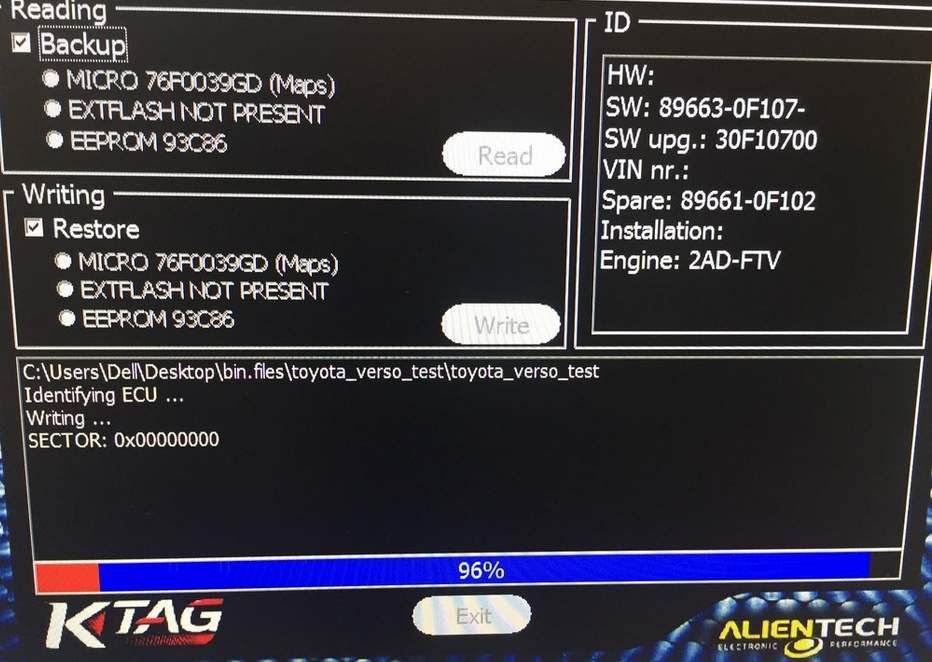
Ktag Firmware V7.020 read Toyota Diesel ECU

Question before entering:
I have a Toyota with d4d engine 2.2d 177hp
Which tool can read and write

Solution:
kess v2 5.017 write it on CAN Line
But you have to do an original because you can't read it
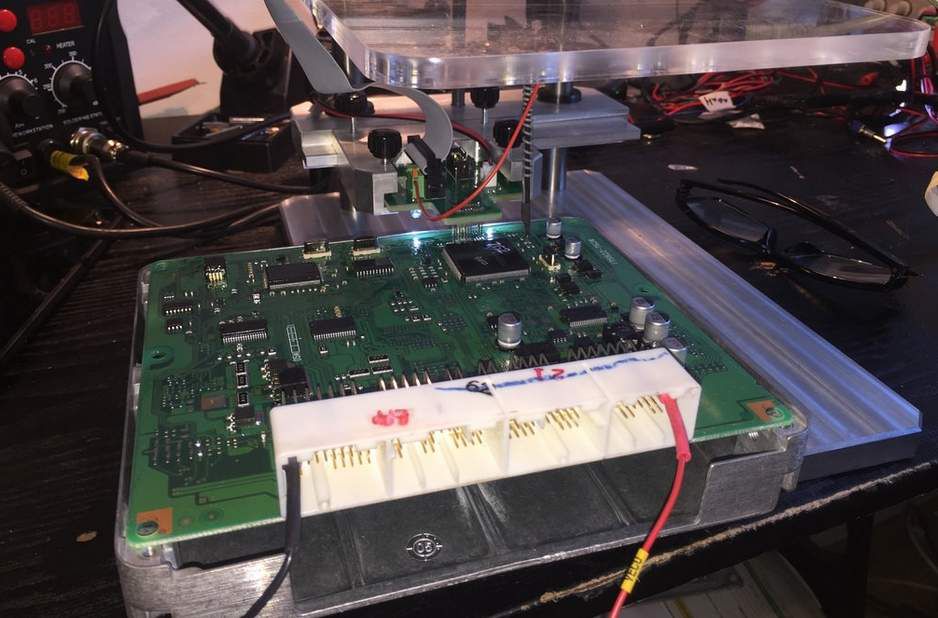
New Ktag clone should do it on bench in Jtag.
X17 official web and write it without problem by OBD or by pinout.
But only in CAN LINE and some think in Kline but you have to buy or build an adapter.

Ktag v7.020 CN clone and eu clone works for me fine
ktag-toyota-diesel-ecu-1ktag-toyota-diesel-ecu-2
ps.
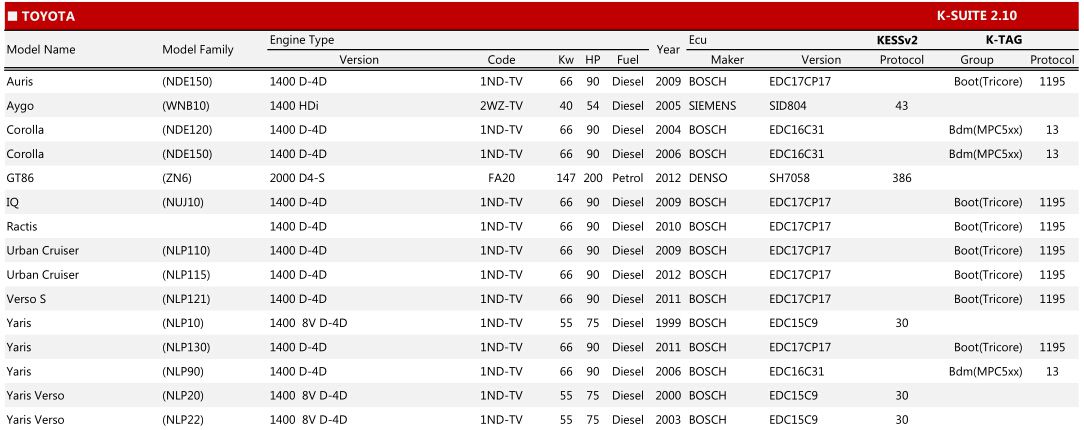
here are parts of Toyota diesel ECUs that Kess v2 v4.036 ksuite supported.
kess-v2-toyota-diesel

Monday, October 16, 2017

How to use Lonsdor K518ISE Program Porsche Macan Turbo Smart Key

Here’s the step-by-step guide on programming smart key on a porsche macan turboby using Lonsdor K518ISE key programmer.
Requirements:
2 keys to be programmed
Read BCM data before programming
Lonsdor K518 key programmer
K518ISE-program-macan-smart-key-1
Guide:
Connect K518ise host with vehicle via diagnostic socket
Turn ignition switch to ON position
Come to Immobilization->Porsche->Macan->Macan Turbo->Smart Key->Program Smart Key
K518ISE-program-macan-smart-key-2
K518ISE-program-macan-smart-key-3
K518ISE-program-macan-smart-key-4
K518ISE-program-macan-smart-key-5
K518ISE-program-macan-smart-key-6
Use programmer to read BCM (D-brights/1N35H EEPROM) data, i.e Xprog v5.70 , VVDI Prog. Save it as. BIN format and import it into the customfile folder.
Press OK to upload bin file
K518ISE-program-macan-smart-key-7
K518ISE-program-macan-smart-key-9
Lonsdor K518 will display vehicle VIN, press OK to confirm
K518ISE-program-macan-smart-key-10
Please do following:
1.All keys need to learn, otherwise it cannot start vehicle. Recommend to learn the original keys before learning new key (battery must be installed)
2. New key added must be the dealer Auto Key Programmer generated by car BCM data or key ordered by VIN code
3.Insert key into induction hole when learning key. For smart key, remove the mechanical flip key from keyhole and insert it into induction hole to program.
K518ISE-program-macan-smart-key-11
K518ISE-program-macan-smart-key-12
Turn ignition to ON
K518ISE-program-macan-smart-key-13
K518ISE-program-macan-smart-key-14
Communicating…please wait
Lonsdor K518ISE will display vehicle VIN and part number, press OK to confirm
K518ISE-program-macan-smart-key-15
Identified number of programmed keys in car: 2
K518ISE-program-macan-smart-key-16
Enter key number to be programmed, here we are going to program 2 keys
K518ISE-program-macan-smart-key-17
Building communication
Current dashboard display: 02-00
Note: if the programming success, the dashboard will turn on automatically
K518ISE-program-macan-smart-key-18

K518ISE-program-macan-smart-key-19
K518 shows current key ID and programming processing
K518ISE-program-macan-smart-key-20
Insert new key into ignition switch
Current dashboard display: 02-01
Note: if the programming success, the dashboard will turn on automatically
K518ISE-program-macan-smart-key-21
K518ISE-program-macan-smart-key-22
Remove key and insert 2nd key within 30 sec, turn ignition ON
K518ISE-program-macan-smart-key-23
Lonsdor K518 shows 2nd key current ID and programming
K518ISE-program-macan-smart-key-24
Remove key, all keys involved in programming need to click the unlock button once
K518ISE-program-macan-smart-key-25
Program success
K518ISE-program-macan-smart-key-26
Program smart key success will automatically generate remote
Test the new smart key
K518ISE-program-macan-smart-key-27
www.fobdii.com

Friday, October 13, 2017

Which One is Better Foxwell NT510 Scanner and Launch M-diag Lite Adapter?

This post will shows the comparison of Foxwell NT510 scan tool and Launch m-diag lite. First comes the table to compare this two diagnostic tool.
ProductFoxwell NT510 ScannerLaunch M-diag Lite plus adapter
Photo  
Price155usd89usd
ScreenYes, it’s hand-held scan tool with a screen and buttonsNo, it’s just an adapter
Laptop/PhonesNo need a laptop in diagnostics but software download/updateMust be used with an iPAD or mobiles running Android or iOS
BluetoothNoYes, connected via Bluetooth
SoftwareFree for one, and another $70 for more vehicle software authorization at http://www.fobdii.comFree for one, and another $35-$50 for more vehicle software
LanguageEnglish, French, Spanish,Dutch, German, ChineseEnglish, Spanish, French, Italian, Chinese
RegisterNecessary!First register on
http://www.foxwelltech.com/,
then register your Foxwell NT510
Necessary!Only when you register Launch M-Diag, can you see Tata, Maruti, Mahindra, Holden and Proton car brands.
UpdateFree update online within 1 year; and update for $60 per year after 1.5 yearsFree update online via http://www.goloiov.com/; and update for $30-$40 later
DiagnosisYesYes
Special functionscoding/service features like Electronic Parking Brake, oil service indicator, and transmission adaptations…IMMO & key programming,  Odometer adjustment, Oil / Service reset,  ABS bleeding, TPS throttle body adaptation, brake pads, steering angle reset, battery matching, DPF regeneration, Injector coding, Tire Pressure Warning Light Reset, gear learning(Note: special functions costs another $30-$40, depending on cars)
Vehiclesnew and old OBDI and OBDII vehicles:  Chrysler GM  Honda, Acura Hyundai, KIA Toyota, Lexus, Sicon  Land Rover, Jaguar Opel, Vauxhall VW, Audi, Seat, Skoda BMW  FIAT  American Ford  Porschethe generic OBD, CAN bus, and proprietary protocols of over 70 car manufacturers and 2, 500 OBDll car models: Hyundai, Kia, Mitsubishi, SUBARU, Mazda, Nissan, Toyota, Renault, Dodge, DACIA, Ford, Chevrolet, GM, HOLDEN, Peugeot, SAAB, SMART, Volkswage, Fiat, ROVER, Opel, Vauxhall, SKODA, Citroen, SEAT, Honda, Buick, Chrysler, Jeep, Ssangyong, GAZ, VAZ, Great Wall, Chery, Daihatsu, Suzuki, Isuzu, BYD, MAHINDRA, MARUTI, TATA, PROTON, Luxgen, PERODUA, Daewoo, Guangzhou Automobile Trumpchi, Geely, Mercedes-Benz commercial vehicles, AUDI, BMW, Mini, Rolls Royce, Porsche, Mercedes, Maybach, Bentley, Bugatti, Abarth, Lancia, Romeo, Volvo, Jaguar, Land Rover, Acura, Lexus, Infiniti, Lincoln, Cadillac, Maserati, Ferrari, Aston Martin

Foxwell nt510 BMW scanner:
Features: hand-held scan tool with a screen, no need a laptop in diagnostics but software download/update
Languages: English, French, Spanish,Dutch, German, Chinese
Register: Necessary! First register on http://www.foxwelltech.com/,then register your Foxwell NT510
Update: Free update online within 1 year; and update for €60 per year after 1.5 years
Cars: Support new and old OBDI and OBDII vehicles:  Chrysler GM  Honda, Acura Hyundai, KIA Toyota, Lexus, Sicon  Land Rover, Jaguar Opel, Vauxhall VW, Audi, Seat, Skoda BMW  FIAT  American Ford  Porsche
Vehicle software & cost: Free for one, and another €60 for more vehicle software authorization or you could contract factory to buy the software directly.

Basic diagnosis + coding/ service features like Electronic Parking Brake, oil service indicator, and transmission adaptations…


Launch m-diag lite Plus diagnostic adapter:
Features: diagnostic adapter; need connect with smart phones running Android / iOS, or iPAD (via Bluetooth)
Languages: English, Spanish, French, Italian, Chinese
Register: Necessary! Only when you register Launch M-Diag, can you see Tata, Maruti, Mahindra, Holden and Proton car brands.
Update: Free update online via http://www.goloiov.com/; and update for $30-$40 later
Cars: Support the generic OBD, CAN bus, and proprietary protocols of over 70 car manufacturers and 2, 500 OBDll car models: Hyundai, Kia, Mitsubishi, SUBARU, Mazda, Nissan, Toyota, Renault, Dodge, DACIA, Ford, Chevrolet, GM, HOLDEN, Peugeot, SAAB, SMART, Volkswage, Fiat, ROVER, Opel, Vauxhall, SKODA, Citroen, SEAT, Honda, Buick, Chrysler, Jeep, Ssangyong, GAZ, VAZ, Great Wall, Chery, Daihatsu, Suzuki, Isuzu, BYD, MAHINDRA, MARUTI, TATA, PROTON, Luxgen, PERODUA, Daewoo, Guangzhou Automobile Trumpchi, Geely, Mercedes-Benz commercial vehicles, AUDI, BMW, Mini, Rolls Royce, Porsche, Mercedes, Maybach, Bentley, Bugatti, Abarth, Lancia, Romeo, Volvo, Jaguar, Land Rover, Acura, Lexus, Infiniti, Lincoln, Cadillac, Maserati, Ferrari, Aston Martin
Vehicle software & cost: Free for one, and another $35-$50 for more vehicle software
Basic diagnosis + special functions: IMMO & key programming,  Odometer adjustment, Oil / Service reset,  ABS bleeding, TPS throttle body adaptation, brake pads, steering angle reset, battery matching, DPF regeneration, Injector coding, Tire Pressure Warning Light Reset, gear learning
(Note: special functions costs another $30-$40, depending on cars)

So, Foxwell NT510 and Launch M-diag Lite, which one will you buy?

Tuesday, October 10, 2017

How to install ODIS-Engineering 6.7.5 software on Windows 7?

ODIS-E 6.7.5 windows 7 32 bit install manual, look here:

Step 1: Install setup assistant
Step 2: Register ODIS-E 6.7.5
Step 3: Download Postsetup
Step 4: Test ODIS Engineering 6.7.5
Step 5: Repair Bluetooth
The most important: Change the date of the computer!!!!!!!!!!!!!
odis-engineering-6.7.5-setup-change-date

Step 1: Install Setup Assistant

Change date and time
Change date to January 1st, 2017 (UTC-8:00) Pacific Time (US & Canada)
Open ODIS-E 6.75 software CD
Copy 6.7.5 kg-pass 123 zip file to desktop
Extract zip file on desktop with encrypted password: 123
Delete zip file on desktop
Copy 6.75 (engineering) folder to desktop and open it
Open OffboardDiagSetup-Engineering_6_7_5
Select setup language
Install ODIS-E setup assistant
Click on Next
select Target folder
click Next
select a directory C:/ODIS-DIAG-MODULES-ENGIN
click on Next
select diagnostic interface: VAS 5054
A bluetooth pairing must be established to use the vas5054, click on Next
License file selection
search desktop->工程 6.7.5 folder->license.dat
click next
Tick create a folder in the start menu
click Next
installing Offboard Diagnostic Information System Engineering
install Microsoft Visual C++2005
Accept the windows security warning by clicking on Install
Finish install Setup assistant
Restart the computer

Step 2: Register ODIS-E 6.7.5

Delete VW-MCD-PDX-Builder file on desktop
Start-> All Program-> Offboard Diagnostic Information System Engineering folder ->Send Offboard Diagnostic Information System Engineering software to desktop
Start-> All Program->Softing D-PDU API for VCIs V1.20.037 folder->send EDIC Configuration Manager to desktop
Right click Offboard Diagnostic Information System on desktop open Properties->Open file location
Open 工程 6.7.5 folder on desktop
Copy and replace OffboardDiagLauncher on Offboard Diagnostic Information System desktop folder
Open Offboard Diagnostic Information System software on desktop
Software will require to enter registration key
Open 工程 6.7.5 folder on desktop
Open key generator
enter registration name: abc
Copy Hardware ID to key generator and click on Generate
it will generate registration key
paste the key to software Key area
click Register

Step 3: Download Postsetup

open ODIS-E postsetup
select local directory
C:/Users/AADD/Desktop/6.75 Engineering-> Database->ODIS_Engineering
if software prompt “no valid software configuration could be found”, select the  destination
C:/Users/AADD/Desktop/6.75 Engineering-> Database
click next
select Postsetup language
check postsetup version:67.5.10
Press next icon to download postsetup
download completed will launch software automatically

Step 4: Test Software

Select Admin->Diagnostic data
open C:/Users/AADD/Desktop/6.75 Engineering-> diagnostic data->AU (Audi)->ODXUPDATE
Select LB (Lamborghini, Bentley),SE (Seat),SK (Skoda),VW ODXUPDATE on by one
Connect VAS 5054a with computer by USB
Open Computer->Manager->Device Manager->Softing Vehicle Interface->VAS5054
Open EDIC Configuration Manager
Current connection is USB connection
Open Offboard Diagnostic Information System Engineering software on desktop
click on Diagnosis
Coding function
special functions, i.e ECU programming, application programming etc

Step 5:  Pair Bluetooth

Installing device driver software
device is ready
select Bluetooth icon,add a device VAS5054
enter the device pairing code: 082145725
click on Next
this driver has been successfully added to this computer
Open EDIC Configuration Manager-> Add a new device
select COM Port 4
Bluetooth connection and com port setup success.
Run ODIS-E 6.7.5 software and diagnose vehicle.
Done!
What else you may need know:
ODIS-Engineering 6.7.5 Car Diagnostic Tool download free:
https://mega.nz/#!P4xlWKJa!f2YmG2AU1Zy4dyWYhmBIXLX4qbLq3hM-BgaLBC_A114
Credits to wopr: Tested… mount and select the drive letter folder… I’ve noticed many posts on the setup and key but no Postsetup Hopefully this helps. no password or anything, just doing my part to help.
Which Vas 5054a scan tool can wok with ODIS-E 6.7.5 100% OK?
Look here: http://www.fobdii.com/wholesale-257-best-quality-vas-5054a-oki.html

What are the major differences in using ODIS-S and ODIS-E?
basically, ODIS-S (Service) is for Diagnostics and ODIS-E (Engineering) is for module programming
the latest is ODIS 4.1.3, the latest ODIS-E is 6.7.5

Odis engineering 6.7.5 licence problem how to solve?
Change the date of the computer and change it for the first two or three months